
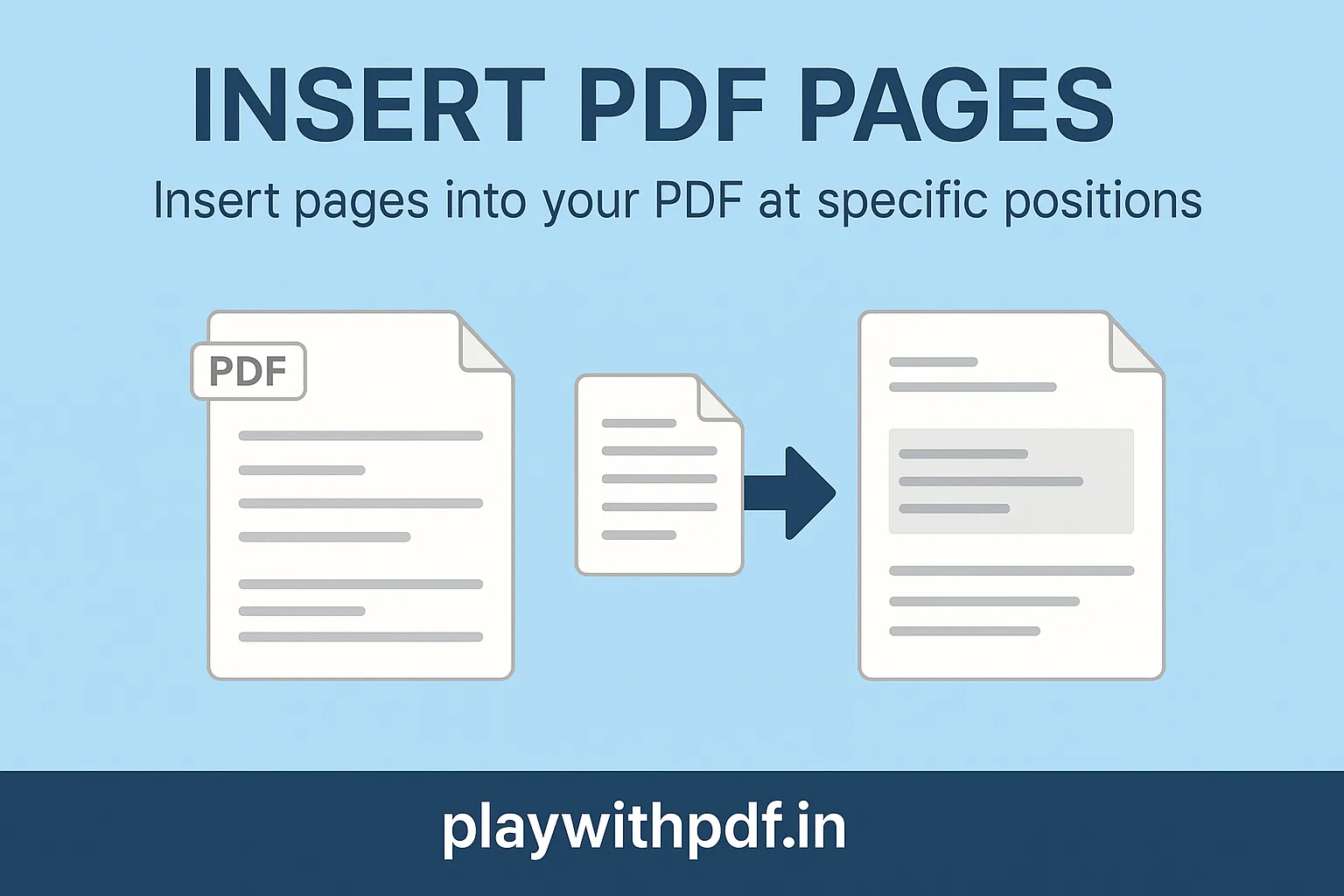
Insert Pages into PDF Online for Free with PlayWithPDF
Inserting pages into an existing PDF is one of those tasks that sounds minor until you try doing it in the middle of a real workflow. A report may need a revised cover page. A contract packet may need one missing signature page. A...
Written by PlayWithPDF
Reviewed by the PlayWithPDF Editorial Team against the current product workflow.
Inserting pages into an existing PDF is one of those tasks that sounds minor until you try doing it in the middle of a real workflow. A report may need a revised cover page. A contract packet may need one missing signature page. A training PDF may need a new appendix between two older sections. The challenge is not just adding the page. It is adding it in the correct place without disrupting the rest of the file.
PlayWithPDF's insert-pages flow is useful for document maintenance, especially when a file is mostly complete and only needs one or two additions. It helps you avoid rebuilding the whole document from scratch or forcing readers to work through separate attachments that should logically sit inside the main PDF.
Step-by-step: how to use the Insert Pages tool
The easiest insert job is one where you know exactly what is being added and exactly where it belongs. A little clarity at the start saves time later.
- Open the Insert Pages tool and upload the main PDF you want to update.
- Upload the page or pages that need to be inserted into that file.
- Choose the exact location where the new content should appear, such as before a chapter, after a cover page, or between two exhibits.
- Generate the updated PDF and download the result.
- Review the final file to confirm that the inserted pages appear in the correct order and flow naturally with the surrounding content.
The review matters because inserted content is often meant to close a gap in the original file. You want that fix to feel seamless.
When this workflow is most useful
Insertion is especially valuable when the source document is mostly correct and rebuilding the entire packet would be unnecessary.
- Adding a revised title or cover page to a finished proposal or report.
- Inserting a missing signed page into a legal or approval packet.
- Placing a newly created appendix or image reference between two existing sections.
- Updating student notes or manuals with one newly scanned page without reassembling the whole file.
In all of these cases, insertion saves time because it updates the structure directly instead of creating another disconnected file.
What to check before you upload your file
Before inserting, confirm that the new pages match the document well enough to feel native to the final file.
- Check page orientation so inserted pages do not appear sideways inside an otherwise upright document.
- Confirm that the new content belongs at a specific position, not just somewhere in the file.
- Rename supporting files clearly if you are inserting more than one page or section.
- Keep the original document available until you are satisfied with the updated version.
A clean insert depends on knowing both the content and the placement. When both are clear, the updated PDF feels intentional.
Common mistakes and how to avoid them
Insertion errors usually come from uncertainty about sequence rather than technical difficulty.
- Adding new pages at the end when they should have appeared near the beginning or middle for context.
- Inserting supporting material without checking whether the surrounding section titles still make sense.
- Forgetting that page references inside the document may need revision after insertion.
- Using insertion when merge plus reorder would be clearer for a much larger update.
The fix is usually simple: think about how the finished document should read from top to bottom, not just where there is physical space.
Quality, privacy, and workflow expectations
Inserted pages should feel like part of one coherent document. If a reader pauses and wonders why a page suddenly appears out of place, the issue is usually structure, not the page itself.
This is why insertion is most useful in controlled document workflows. It helps preserve the integrity of the full file while accommodating late-stage additions that would otherwise slow everything down.
Troubleshooting tips
If the updated PDF does not look right after insertion, review the structure before trying again.
- If the new page seems abrupt, move it one section earlier or later and compare the flow.
- If formatting feels inconsistent, check whether the inserted page came from a different source layout or orientation.
- If the document has become too large after insertion, compress the final PDF once the structure is correct.
- If several pages are being added across many positions, consider whether a broader rebuild with reorder tools would be faster.
Most insert problems are solved by clarifying structure and reading sequence rather than changing the content itself.
How this tool fits into a bigger PDF workflow
Insert Pages often sits alongside merge, reorder, rotate, and add-page-numbers. A team might insert a revised approval page, reorder the packet, add page numbers, and then distribute the final file as the new official version.
In that sense, insertion is less about editing a single page and more about preserving document continuity in real working files.
Final thoughts
When a PDF is almost right but missing one essential piece, insertion is usually the cleanest fix. Place the page carefully, review the flow, and the updated file will feel complete instead of patched together.
Why insertion is often better than rebuilding a document
Rebuilding a full PDF from scratch just to add one page creates more room for error than many teams expect. Pages can shift, old versions can slip back in, and the final packet may need to be checked almost from zero again. Insertion is useful because it preserves the stable parts of the document while addressing only the gap that changed.
That makes it a very efficient maintenance tool. When the document is mostly right already, a careful insert can be the fastest path to a correct final version.
It is especially helpful in approval workflows where most of the packet is already signed off and only one supporting page or revision needs to be placed in the correct spot.
For that reason, insertion is often less risky than a full rebuild and much easier to verify afterwards.